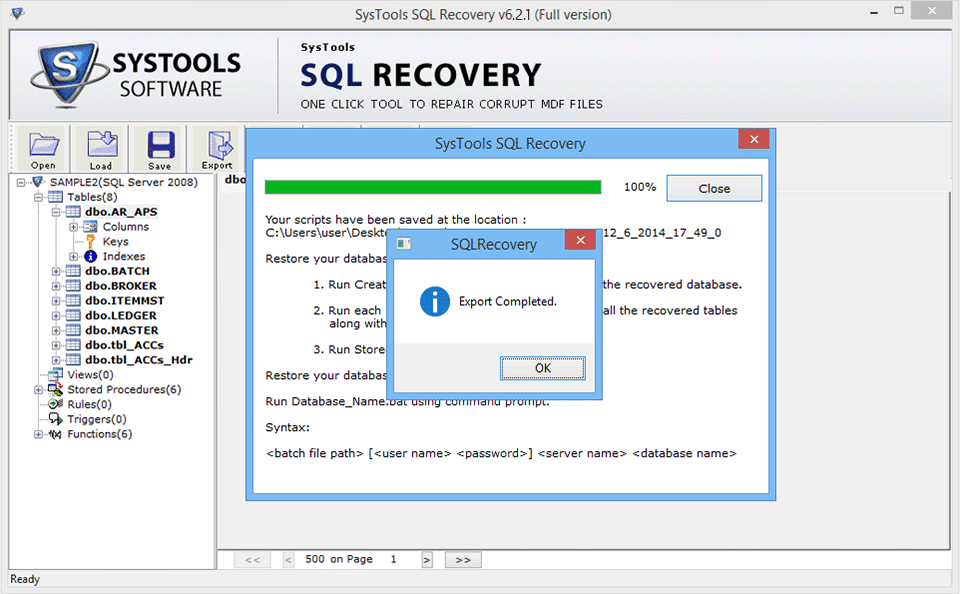
Take a Quick Look on SQL Server Database Recovery Steps
Now follow the easy steps of SQL Server database recovery with SQL data recovery Tool:
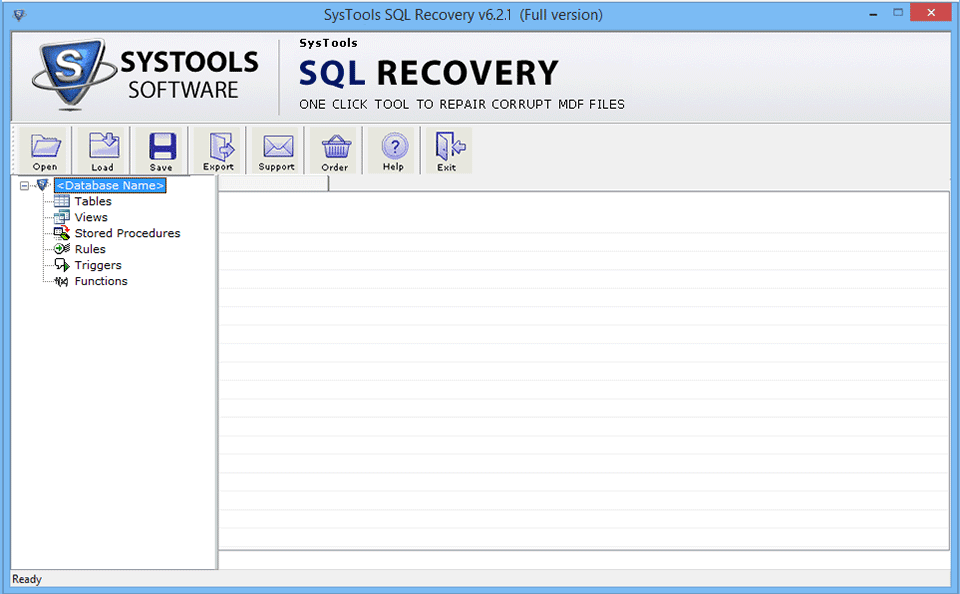
STEP 1: Open SQL Data Recovery Software: Click Start > All Programs > SQL Repair Software. The initial software screen will appear. Following is the screenshot which shows how your initial screen would look like:
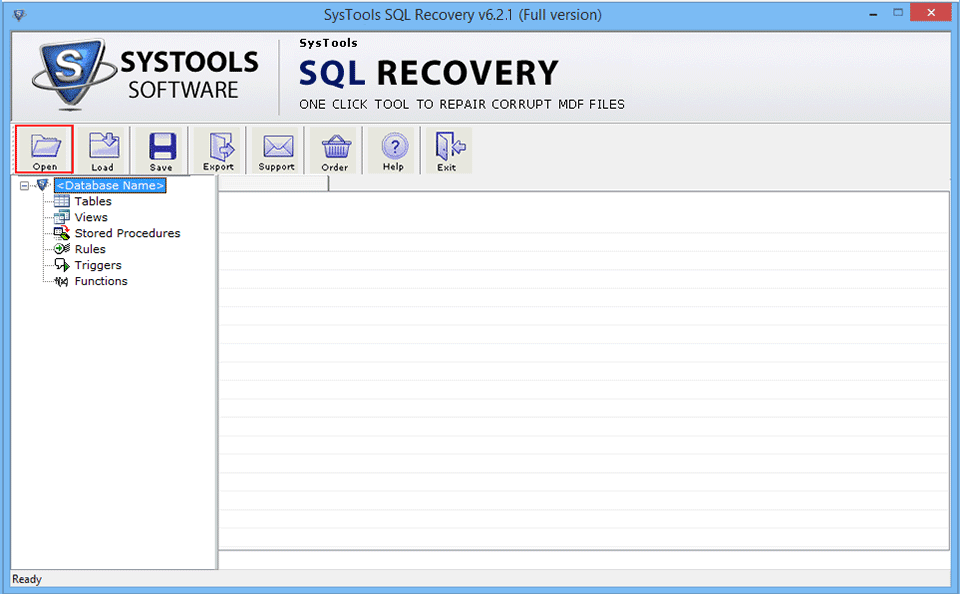
STEP 2: Click Open switch, and Select SQL MDF file. Then SQL Repair software will show this screen:
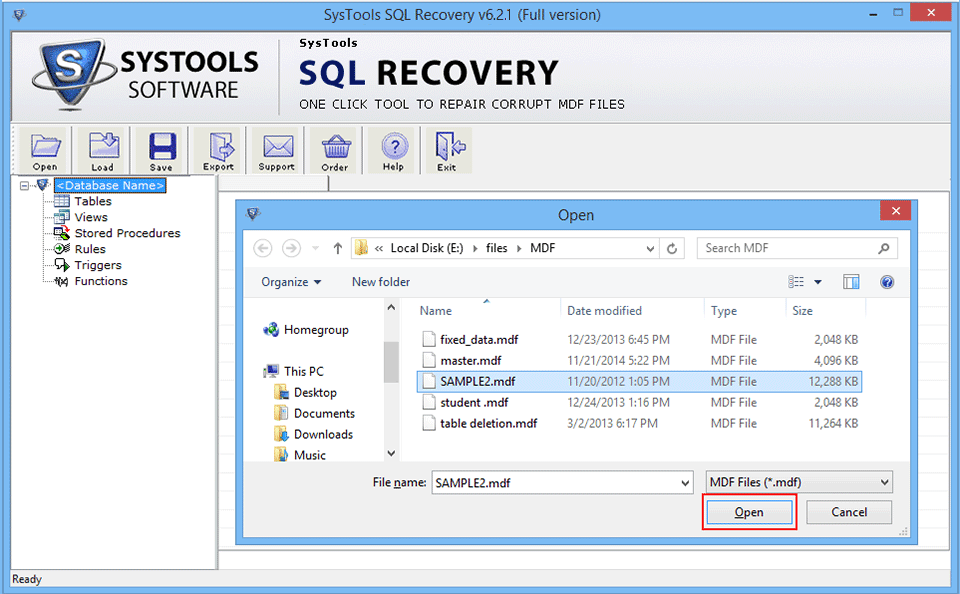
STEP 3: After that desire the damaged or Damage MDF file and click Open Switch
STEP 4: Choose “Quick Scan” or “Advance Scan” Option.
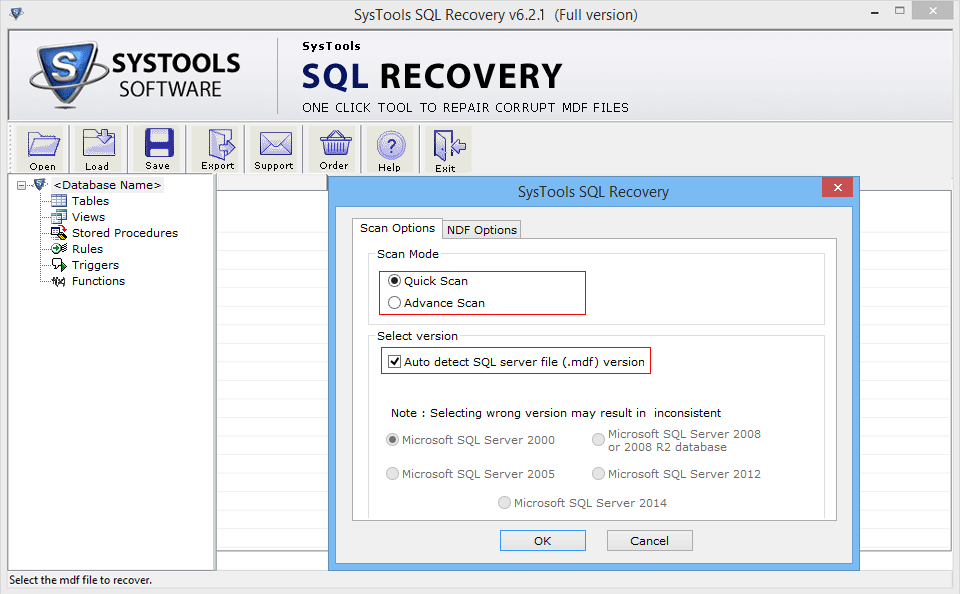
STEP 5: Click on add button to select NDF files
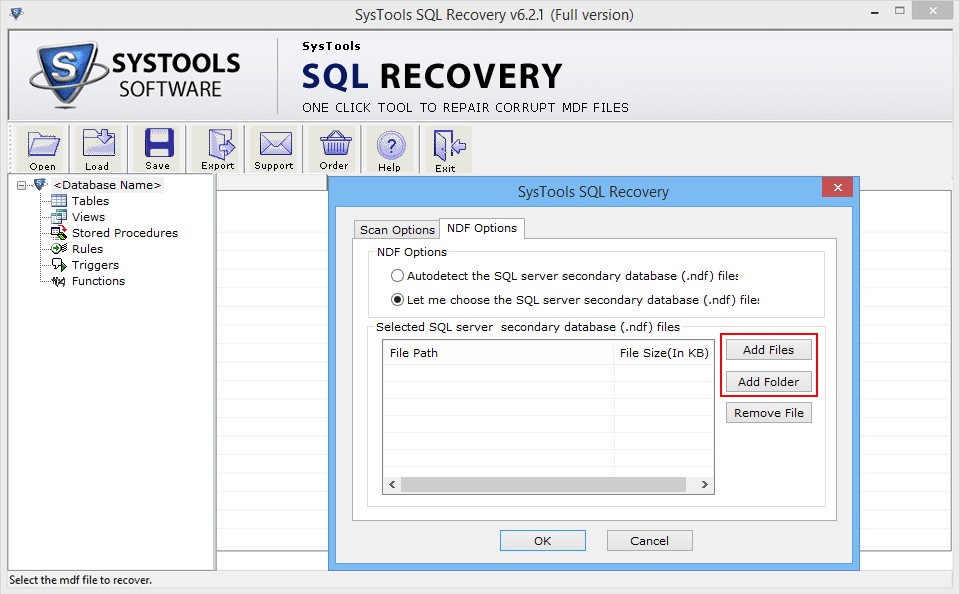
STEP 6: Choose NDF file and click on Ok button
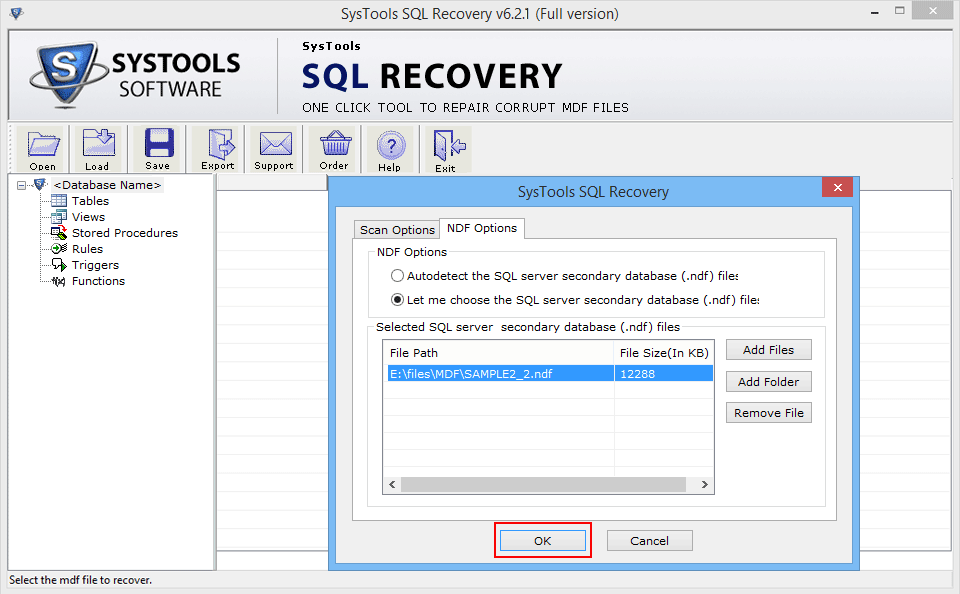
STEP 7: After, that SQL database Recovery tool show location of chosen MDF file after that click on Recover key to set up the SQL recovery process.
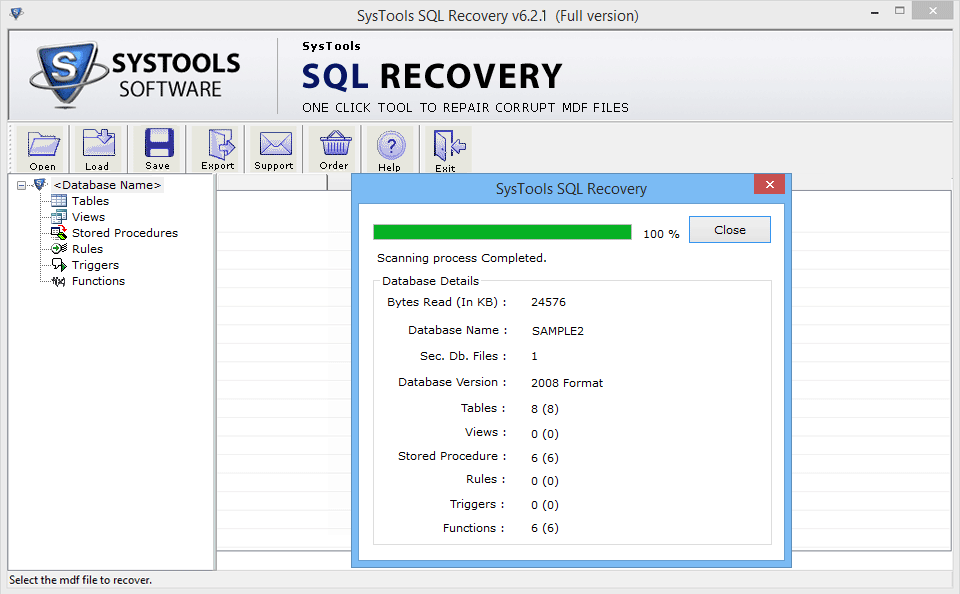
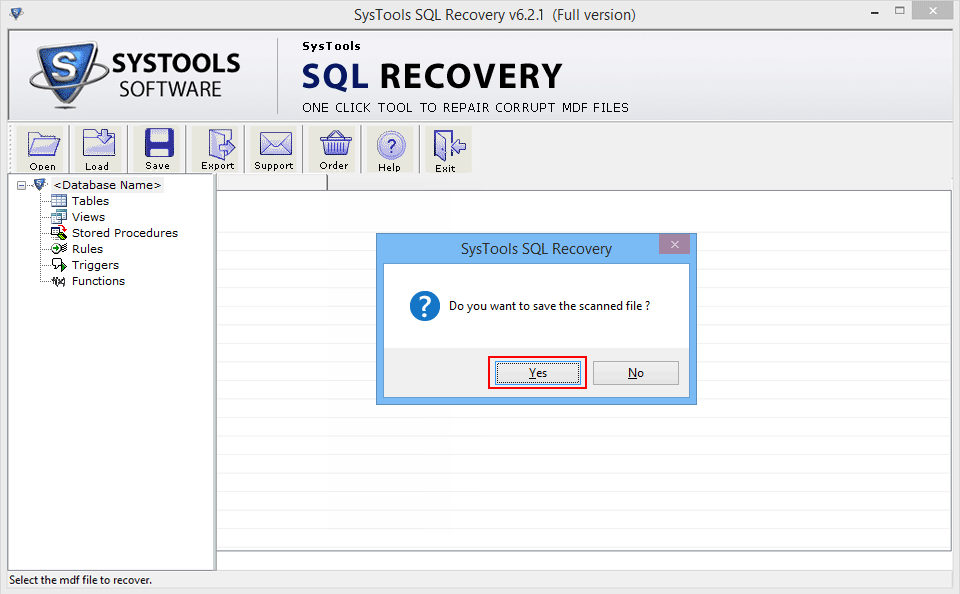
STEP 8: After whole Recovery way if you wish for save .str file then click “Yes”
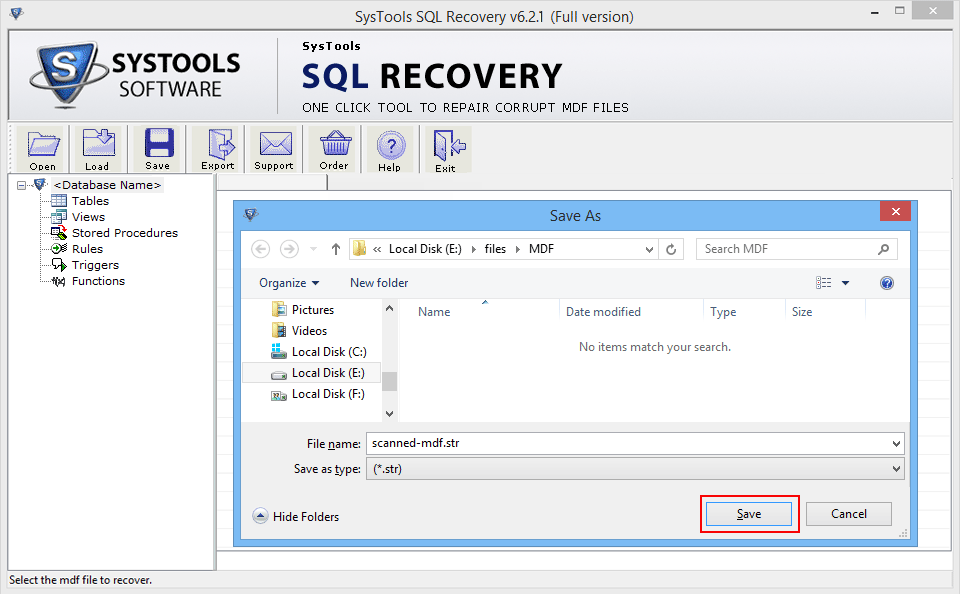
STEP 9: Choose the path for saving .str file.
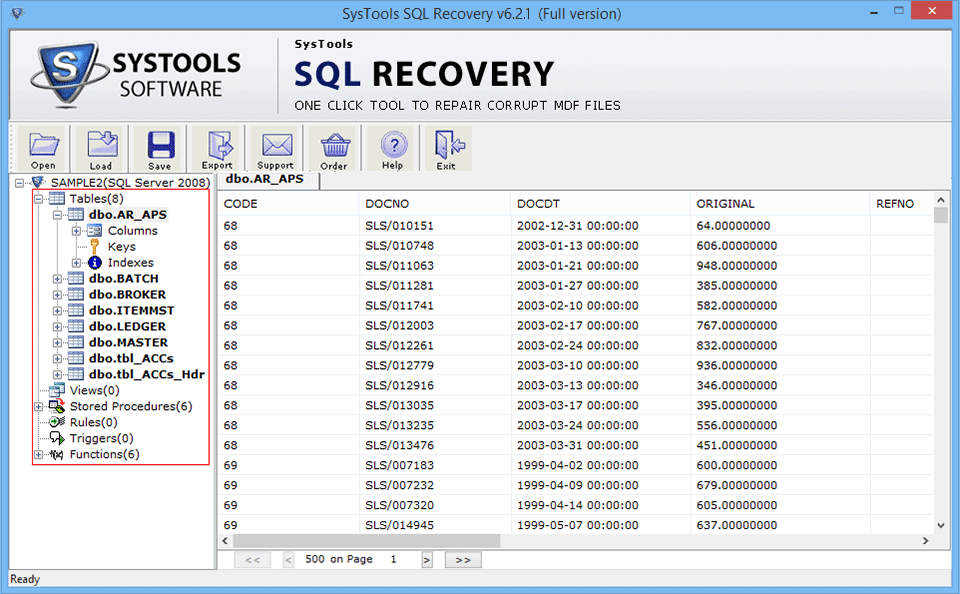
STEP 10: SQL Recovery Program shows you complete “preview “ the recovered SQL Elements like: triggers, views and tables etc.
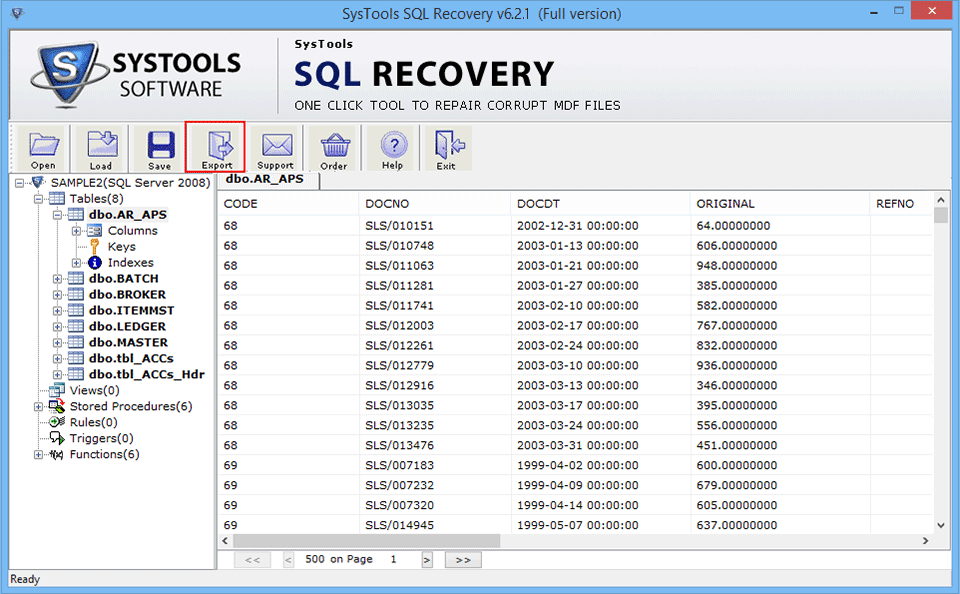
STEP 11: After preview of SQL Database then click “Export”Alternative.
STEP 12: 

STEP 13: 
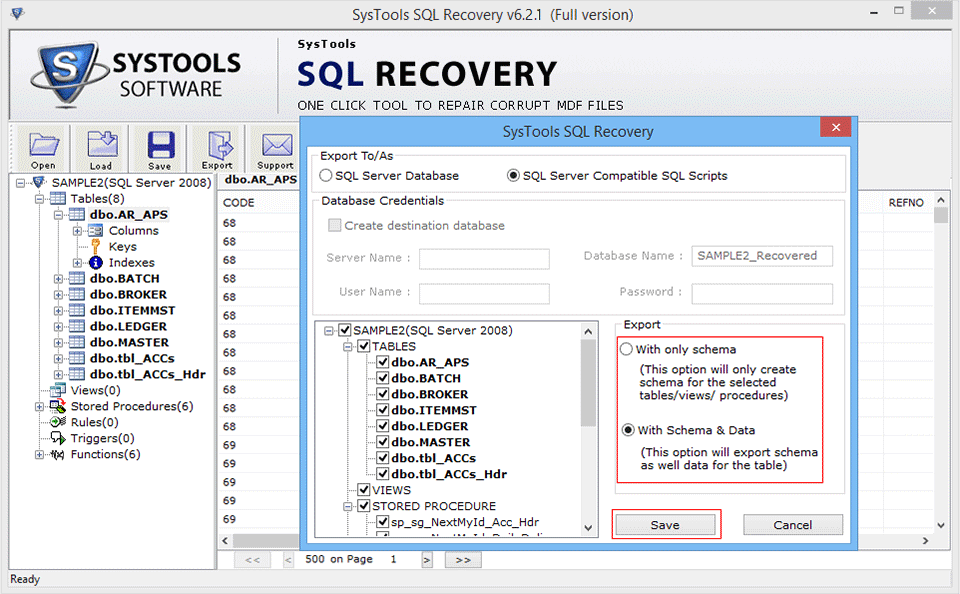
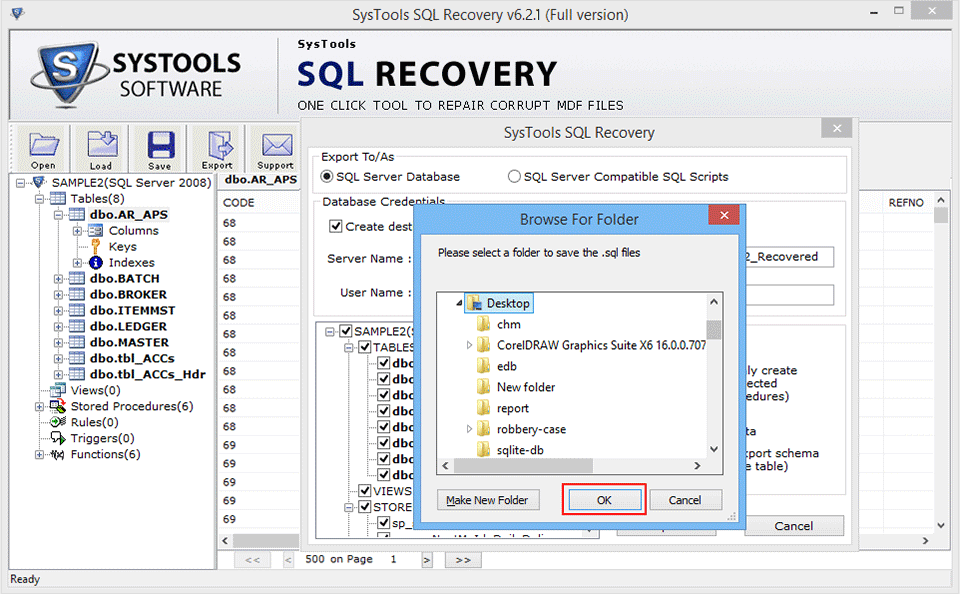
STEP 14: Choose location and create folder used for Save SQL Server Database, then choosing Click “OK”
STEP 15: After whole Recovery Process then Click on "Ok" Button.